Rules
The rules screen is the alert‑condition authoring surface — a table of every rule in the
project, the form for creating or editing a rule, and the detail view for inspecting a rule’s
configuration and its alert history. It lives under the Alerts parent at
/projects/:id/rules.
What you see
Section titled “What you see”Rule list
Section titled “Rule list”A paginated table listing every alert rule configured for the project. Columns:
| Column | Description |
|---|---|
| Severity | Colour-coded badge — critical or warning |
| Scope | Asset, Class, or Group — the evaluator resolves most-specific-wins |
| Target | The asset, class, or group the rule targets |
| Condition | Human-readable summary — e.g. “battery_v falls below 3.4 V (×2)” |
| Status | Active (evaluating) or Paused (not evaluating) |
The scrubber toggles between All, Active, and Paused. Click any column header to sort.
Rule editor form
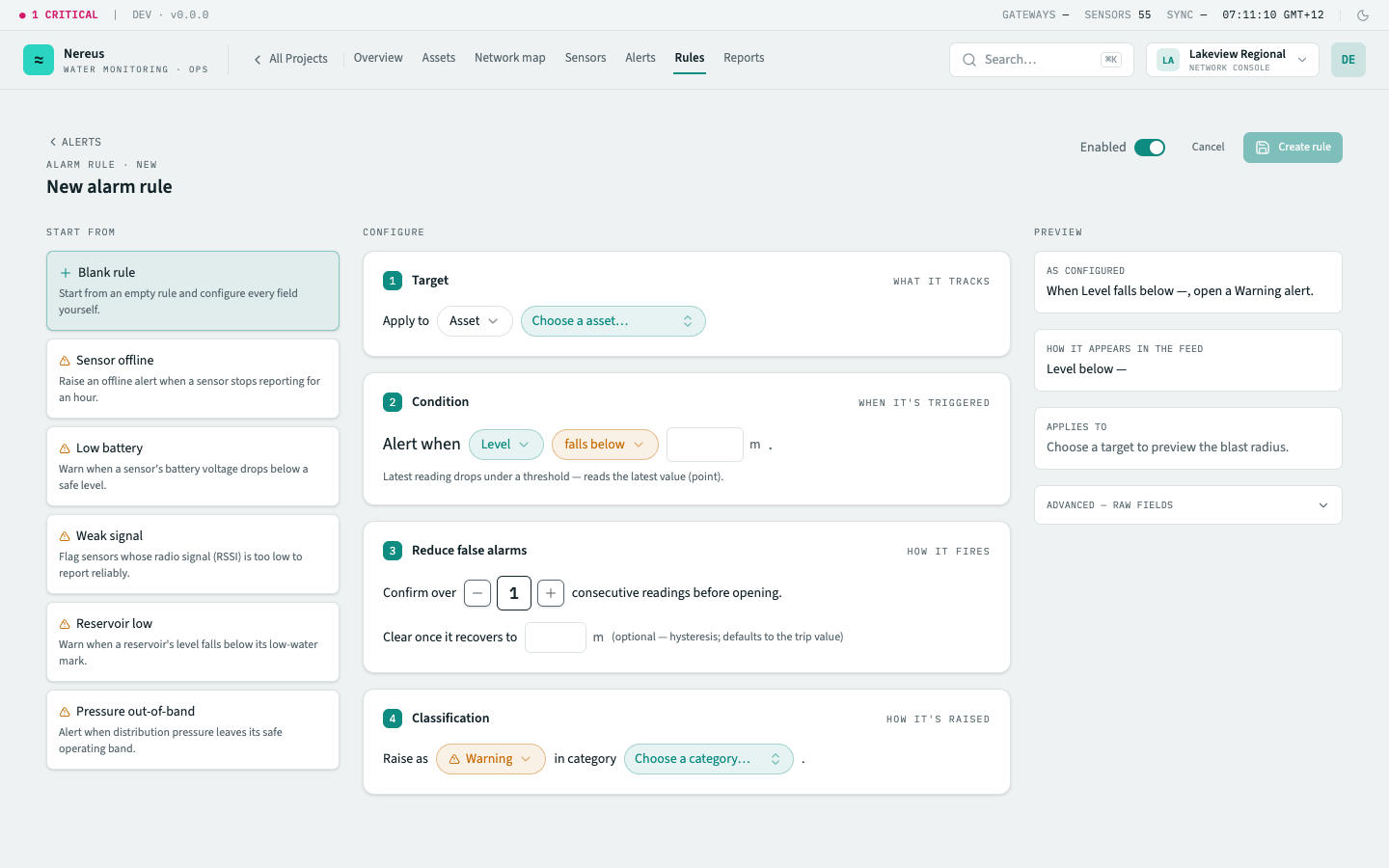
Section titled “Rule editor form”Click Create rule or edit an existing rule to open the rule editor — a sentence-style form in four sections:
1. Target — what the rule watches:
- Scope toggle — Asset, Class, or Group. Asset scope picks one asset; class scope applies to every asset of a class (new assets of the class inherit it); group scope covers every asset beneath a group. When rules overlap, the most specific wins (asset ▷ class ▷ group).
- Target picker — choose the specific asset, class, or group. A class scope shows a live “applies to N assets” preview of its blast radius.
2. Condition — what trips it, written as a sentence (Alert when …):
- Metric picker — choose from the catalogue (e.g.
battery_v,flow_rate_lpm,level_m,pressure_kpa). - Comparator picker —
lt(falls below) /gt(rises above) /outside_band(moves outside a band) /rate(changes faster than) /pct_over_baseline(exceeds a baseline by) /min_over_window(stays above — flow only) /stale(reports no data for). - Threshold fields — depend on the comparator:
tripValueforlt/gt;tripValue+tripValueHiforoutside_band;tripValue+windowSecsforrateandmin_over_window;tripValue+baseline+windowSecsforpct_over_baseline;windowSecsalone forstale.
3. Reduce false alarms — how it fires:
- Debounce — the number of consecutive breaching readings required before the rule opens an alert. Prevents transient noise from firing false alarms.
- Clear value (optional) — the healthy value the metric must recover past before the rule resolves (hysteresis). Defaults to the trip value when omitted.
4. Classification — how it’s raised:
- Severity — Warning or Critical. (Offline alerts come from the
stalecomparator, not a severity you pick.) - Category (optional) — a grouping label chosen from a picklist (e.g. Reservoir level, Pressure, Flow, Device health, Leak).
Rule detail view
Section titled “Rule detail view”Click any rule row to open the rule detail panel — a read‑only view showing the rule’s full configuration, creation timestamp, and a list of every alert it has ever generated (with severity, opened date, and current state). From this panel you can Edit the rule (opens the editor pre‑filled) or Pause / Resume it.
Key interactions
Section titled “Key interactions”Create a rule — from the Create rule button. The editor opens with empty fields and the scope defaulting to Class. Rules are active immediately on save unless the Paused toggle is set.
Edit a rule — from the rule row’s overflow menu or the detail panel’s Edit button. Changing a rule’s condition or severity affects only future evaluations — existing open alerts from the old configuration stay in their current state.
Pause / resume — from the overflow menu or detail panel. Pausing stops the rule from evaluating. Existing open alerts remain active and must be acknowledged or resolved independently. Resuming re‑enables evaluation from the next sweep.
Delete a rule — from the overflow menu. Prompts confirmation. Deleting a rule does not close its existing alerts — they stay in the queue with the rule annotated as “deleted”. The rule cannot be recovered; create a new one instead.
Related
Section titled “Related”- Alert rules — the rule lifecycle, comparators, and scope logic
- Alerts screen — the alert queue where rule‑generated alerts appear
- How to create an alert rule — step‑by‑step guide