Assets & Groups
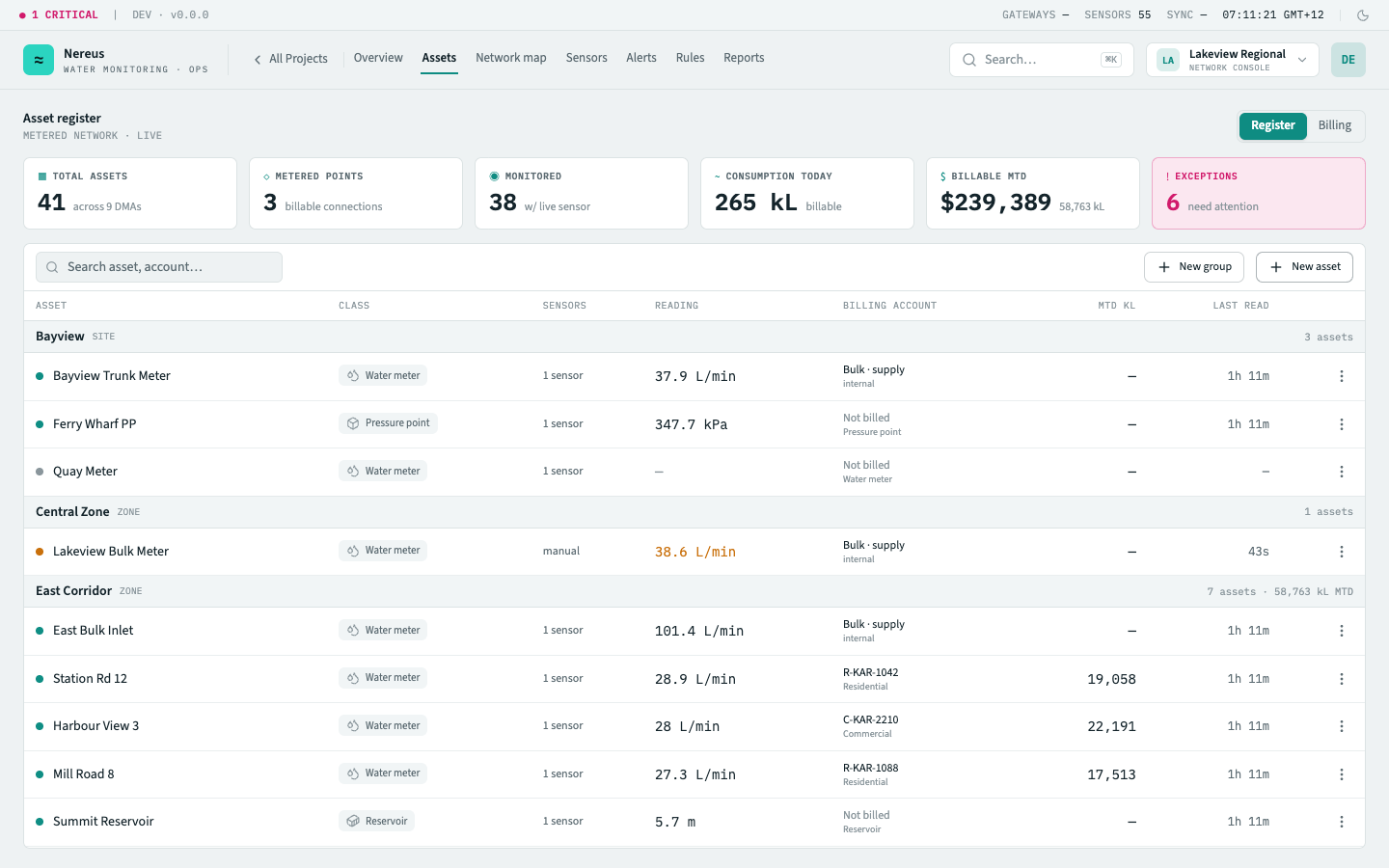
Assets are the physical infrastructure under monitoring — reservoirs, pump stations, flow meters, and pressure points. Every asset belongs to a group in a three-level hierarchy and has an asset class that determines its icon, metric catalogue, and geospatial presentation.
Group hierarchy
Section titled “Group hierarchy”Groups organise assets into logical geographic clusters using a region → zone → site tree:
North Basin (region)  ├── Central Zone (zone)  │     ├── Lakeview (site)  │     └── Harbourside (site)  ├── East Corridor (zone)  └── South Ridge (zone)
West Shore (region)  ├── Shoreline (site)  ├── Fairview (site)  └── Hillcrest (site)
Each group has exactly one parent (or none, for a region) and zero or more children. A site is a leaf — it contains assets but no further nesting. The group sidebar on the left of the assets and map screens reflects this tree; clicking a group filters the register to only that group’s assets.
Groups also carry a centroid coordinate for map rollups — when you zoom out, the map shows a group-level pin summarising the worst asset status within that group.
Asset classes
Section titled “Asset classes”Every asset is classified into one of four classes. The class sets the asset’s icon, its attribute schema, and which metrics it reports:
| Asset class | Typical metrics | Attributes | Map pin |
|---|---|---|---|
| Water meter | Flow rate (m³/h), cumulative volume (m³) | diameter_mm |
Filled circle |
| Pump station | Pressure (kPa), pump status | rated_kw |
Cog |
| Reservoir | Level (m, %), volume (m³) | capacity_m3, capacity_level_m |
Filled droplet |
| Pressure point | Pressure (kPa) | zone_code |
Triangle |
Reservoir assets use the capacity_level_m attribute as the full‑pool reference for the fill gauge —
the gauge displays level_m / capacity_level_m as a percentage (clamped). An asset that omits the
capacity key shows the raw level reading instead.
Asset statuses
Section titled “Asset statuses”An asset’s status reflects its position in the commissioning lifecycle:
| Status | Meaning |
|---|---|
| Active | Commissioned and reporting — contributes to fleet health and alert evaluation |
| Commissioned | Installed and enrolled but awaiting its first uplink — shadow is null |
| Planned | Provisioned in the register but not yet deployed — no device, no telemetry |
| Decommissioned | Retired from service — excluded from fleet health and alert evaluation |
Planned and decommissioned assets appear in the register with a muted badge. Active and commissioned assets count toward the fleet total; planned and decommissioned do not.
Key interactions
Section titled “Key interactions”Add a group — from the group sidebar menu, create a new group at any level. Enter a name and select a parent group (or leave empty for a new region). Groups created this way appear immediately in the tree.
Move an asset — drag an asset row to a different group in the sidebar, or use the Change group action on the asset detail sheet.
Edit group — rename a group or update its centroid from the group sidebar’s context menu.
Related
Section titled “Related”- Assets screen — the full asset register and detail sheets
- Dashboard widgets — how assets appear in reading cards and fill gauges
- Alert rules — rules scope to assets or their class